



You install a Cisco 10G SFP module, and the port stays down, flaps, or drops into an err-disabled state. Before you assume the module is faulty, it helps to know that most failures with SFP-10G-SR, SFP-10G-LR and their -S versions come from a short list of causes, and most take minutes to diagnose from the command line.
This guide walks through those causes in the order engineers usually check them, what the key commands show, and how to avoid the problem on your next order.
Quick Checklist
Work through these five checks first:
- Is the port err-disabled? Check the interface state and the log.
- Does the module match the fiber? SR needs multimode; LR needs single-mode.
- Do both ends match? SR to SR, LR to LR.
- Are the light levels sane? Read the transceiver DOM data.
- Is the module supported on this platform and software release? Check Cisco’s compatibility matrix.
Understand the Error: It’s an Identity Check, Not an Optical Test
The most common message engineers see with a Cisco 10G SFP module is the unsupported transceiver error. On Catalyst switches, Cisco’s troubleshooting documentation shows log lines in this form:
%PLATFORM_PM-6-MODULE_ERRDISABLE: The inserted SFP module with interface name GiX/Y/Z is not supported %PM-4-ERR_DISABLE: gbic-invalid error detected on GiX/Y/Z, putting GiX/Y/Z in err-disable state
Every SFP+ carries an EEPROM identifying its vendor and part number. When you insert a module, the switch reads that identity and compares it with what the platform recognizes. The switch is checking the module’s ID, not testing whether the optics work. That is why a module can be rejected even though the optics are fine, and why Cisco’s advice is to consult the Cisco Optics Interoperability Matrix to confirm the module is supported on your specific switch model and software version.
Commands That Answer Most Questions
Run these on the switch (exact syntax varies slightly between IOS, IOS-XE and NX-OS):
- show interfaces status err-disabled to see whether the port was shut down by the switch
- show logging | include gbic|SFP|TRANSCEIVER to find the error messages above
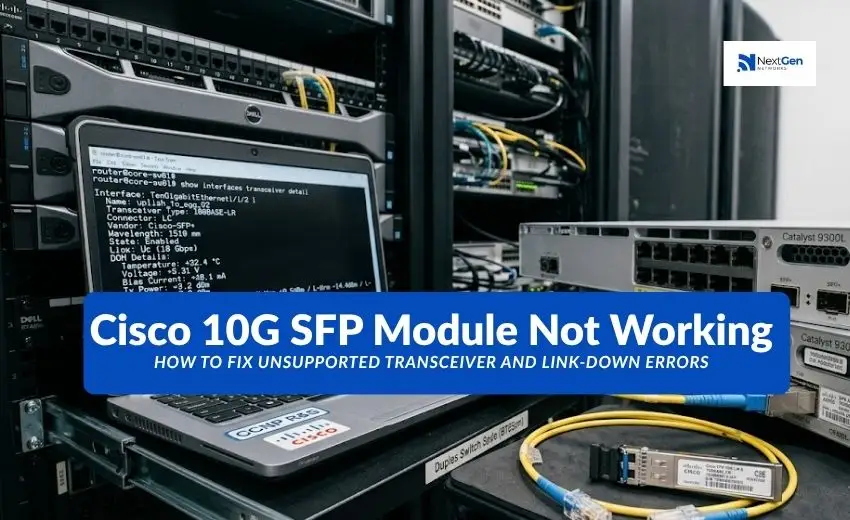
- show interfaces <interface> transceiver detail to read the module’s vendor data and DOM readings
- show inventory to confirm the switch recognizes the module’s part number
A healthy module returns vendor and serial information plus DOM readings: temperature, voltage, bias current, and transmit and receive power. If the module doesn’t show DOM data or the switch can’t read it, suspect a seating problem or an unrecognized module before you suspect the fiber.
Common Causes and Fixes
| Symptom | Likely cause | What to do |
| Port err-disabled right after insertion (gbic-invalid) | Module not recognized by the platform or software release | Check the compatibility matrix; use a module coded for your platform |
| Port down, no err-disable | Fiber type mismatch, e.g. SR module on single-mode fiber | Match SR to multimode, LR to single-mode |
| Link won’t come up between two modules | Mismatched pair, e.g. SR on one end and LR on the other | Use the same module type at both ends |
| Link up but errors or flapping | Dirty connectors, damaged patch cord, or reach exceeded | Clean connectors; check fiber grade and distance |
| Low receive power in DOM output | Dirty or damaged fiber, or too much distance | Clean and re-test; verify OM3/OM4 grade and run length |
| Module seated but not detected | Module not fully inserted, or the port doesn’t support 10G | Reseat the module; confirm the port is a 10G SFP+ port |
| FCoE traffic fails on an -S module | S-class modules don’t support FCoE | Use a non-S module for FCoE links |
| Patch cord fits but performance is poor | APC connector used | Use PC or UPC patch cords only |
Fiber and Reach Checks
The two modules people confuse most are SFP-10G-SR and SFP-10G-LR. SR is a multimode module (850nm) with reach up to 300m on OM3 and 400m on OM4. LR is a single-mode module (1310nm) reaching 10 km. Plugging an SR module into single-mode fiber, or pairing SR with LR, will not produce a working link. Cisco’s datasheet also specifies that only PC or UPC patch cords are supported, so an APC-terminated cord is a quiet cause of poor results.
The -S Question
S-class modules (SFP-10G-SR-S, SFP-10G-LR-S) share the same optical specifications as the standard versions but are an Ethernet-only tier. Cisco’s datasheet states that SFP-10G-LR-S does not support FCoE. If a storage link that carries FCoE fails on an -S module, that is the reason to check first.
Clearing an Err-Disabled Port
Once you have fixed the underlying cause (installed a supported module, corrected the seating, or replaced the fiber), you can clear the state with a port flap: shutdown, then no shutdown on the interface. You can also enable automatic recovery with errdisable recovery cause gbic-invalid. Recovery only re-enables the port on a timer; it doesn’t fix the cause, and an unresolved fault will keep tripping the port.
What About the “Unsupported Transceiver” Override Commands?
You’ll find references to service unsupported-transceiver and no errdisable detect cause gbic-invalid that tell the switch to stop enforcing the check. Treat these with caution:
- On many IOS versions the first command is undocumented, and community discussions report it was deprecated or hidden in newer releases.
- Enabling it does not guarantee a non-Cisco module will work.
- Cisco TAC may decline to troubleshoot a problem until the non-Cisco module is replaced.
- Behavior differs by platform and software version. On NX-OS the approach is different again.
For production networks, the cleaner path is to use modules that are validated for your platform in the first place, rather than relying on an override.
How to Avoid the Problem Before You Order
Check the matrix first. Look up your switch model and software version in Cisco’s Transceiver Module Compatibility Matrix before choosing a module.
Identify fiber and distance. Confirm multimode or single-mode and measure the run, so you order SR or LR correctly.
Decide on -S versus standard. If any link carries FCoE, don’t use S-class modules.
Ask your supplier how modules are tested. Whether you buy genuine Cisco or a compatible module, ask what platform testing was done and what the warranty covers.
Keep a spare. Holding at least one spare of each deployed part number shortens recovery when a module does fail.
Sourcing Cisco 10G SFP Modules
NextGen Networks supplies Cisco 10G SFP+ modules and can help match the right SR, LR or -S part to your fiber type, distance and switch platform before you order. Browse the range on the Cisco optical transceivers page.
Conclusion
When a Cisco 10G SFP module won’t come up, the cause is usually one of a handful of things: an unrecognized module, a fiber or pairing mismatch, dirty or wrong connectors, or an -S module on an FCoE link. Read the logs and DOM data before replacing hardware, fix the cause, then clear the port. Checking compatibility and fiber type before you order prevents most of these problems.